Important Transition Dates
- April 10–11, 2026: Portal invitations sent
- April 14, 2026: Old Appfolio portal shuts down
- May 1, 2026: May rent is due through the new portal
- May 5, 2026: Late fees apply and paper checks stop being accepted at the office
Top 10 Questions
- When will I receive my portal invitation?
- I always pay by check - what are my options?
- How do I pay with eCheck?
- Why is my Current Balance $0.00?
- How do I set up autopay?
- What if I had autopay set up through my bank?
- How do I submit maintenance requests?
- How do I communicate with my property manager?
- What if I didn't receive my invitation?
- What if I already mailed a check?
Getting Started
Your Rentvine Resident Portal invitation will arrive by email from Rentvine on April 10 or 11, 2026, with DV Communities as part of the sender name. The email will come from a Rentvine address (likely noreply@mail.rentvine.com). If you don't see it, check your spam/junk folder.
The invitation will come from a Rentvine email address (likely noreply@mail.rentvine.com) with "Rentvine, DV Communities" in the sender name. The subject line will say "You've been invited to the Resident Portal." If you don't see it in your inbox, check your spam/junk folder.
Yes! You can (and should) use the same email address. This will be the email where you receive your portal invitation. If you used multiple email addresses with the old system, use your primary/preferred email for the new portal.
First, check your spam/junk folder. If you still don't see it after 24 hours, contact us at ddpm@doorvest.com or (541) 639-8304 and we'll resend your invitation immediately.
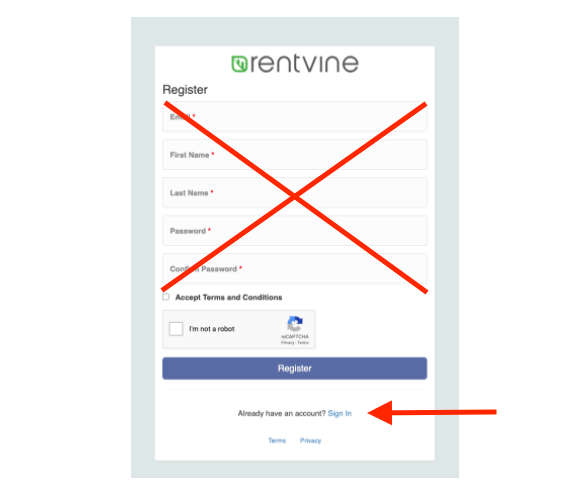
Don't create a new account! When you click the invitation link:
- Scroll to the bottom of the registration page
- Click "Already have an account? Sign in"
- Enter your existing email and password
- Accept the portal invite
- Go to the portal login page
- Click "Forgot Password?"
- Enter your email address
- Check your email for the reset link
- Create your new password
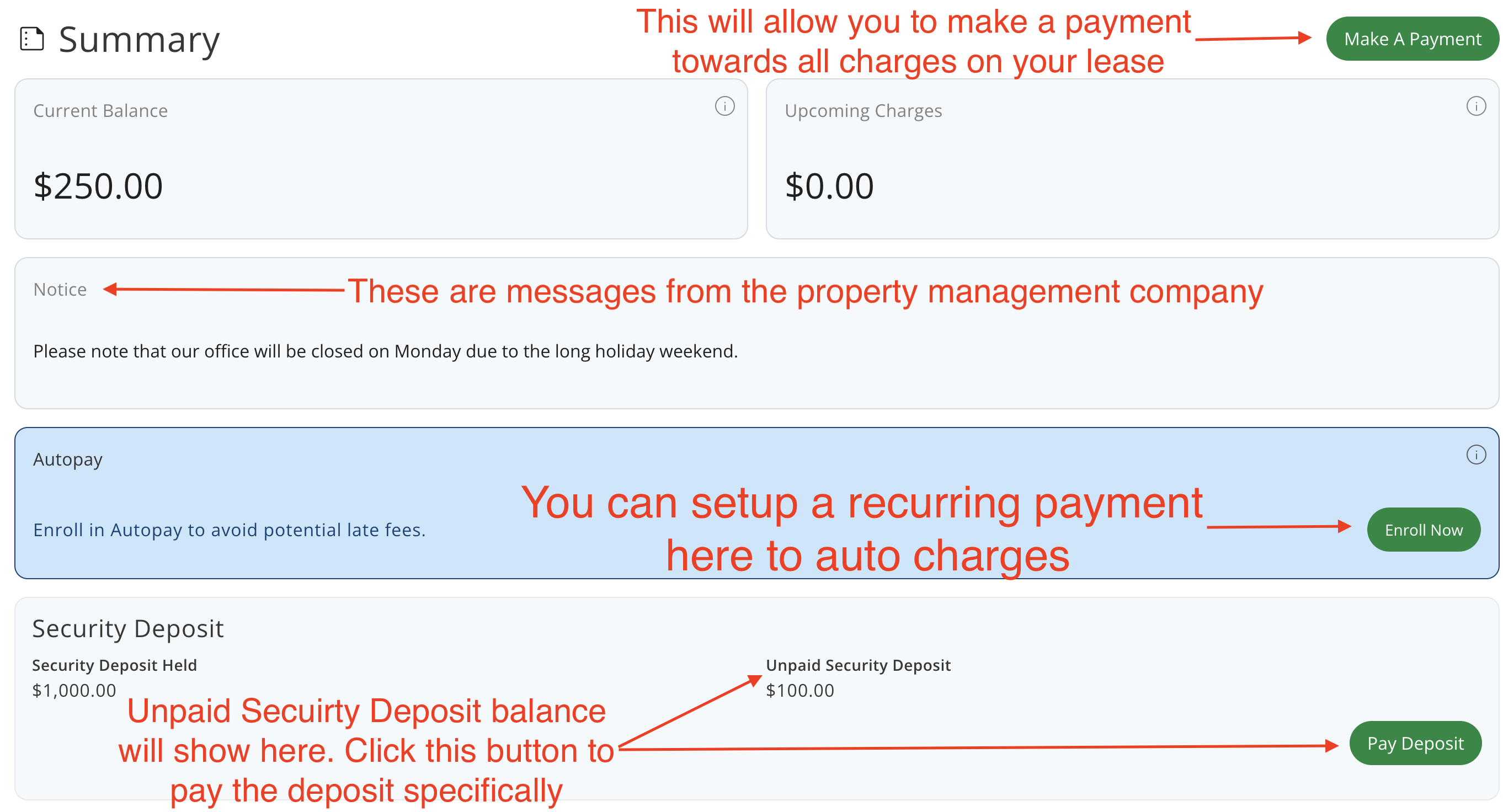
You'll land on the Summary Page, which shows:
- Current Balance: Charges due right now
- Upcoming Charges: Charges posting within the next 18 days
- Security Deposit: Your security deposit balance
- Autopay: Enrollment status
- Lease Details: Start/end dates, occupants, move-out notice option
- Recent Activity: Recent charges and payments
- Monthly Charges: Recurring charges on your lease
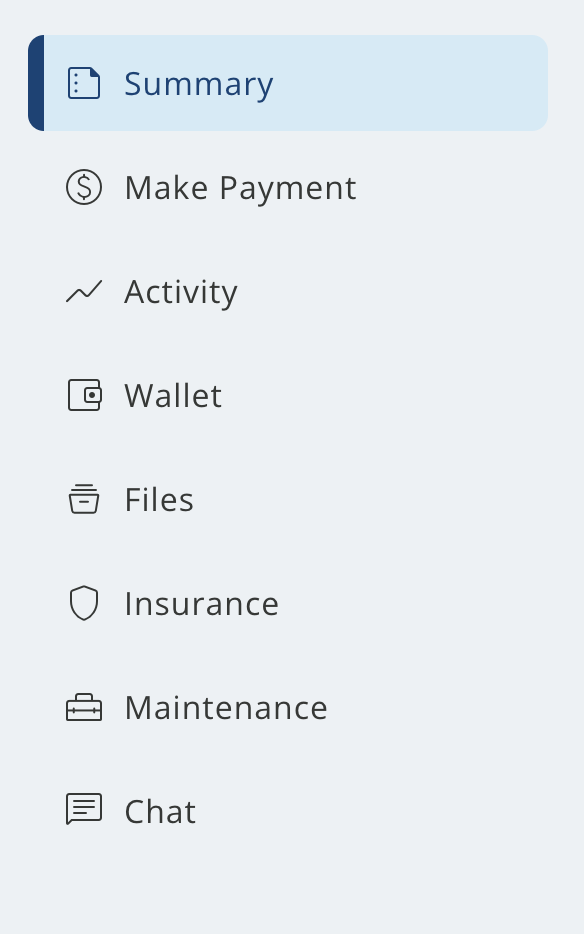
Beyond the Summary page, you'll have access to:
- Make a Payment: Process rent payments and see payment options
- Activity: View complete transaction history with date filters
- Wallet: Save payment methods for faster future payments
- Statements: Download monthly account statements
- Files: View documents from your property manager and upload documents to share with them
- Insurance: Display and upload your renters insurance details
- Maintenance: Submit and track maintenance requests
- Chat: Communicate directly with your property manager
Understanding Your Balance
This is temporary during the transition. Here's the timeline:
- April 10-30: Balances and payment history are being updated and may show $0.00 or look incomplete
- May 1: May rent moves to "Current Balance" and is officially due
- May 5: Late fees apply to unpaid balances
Important terminology:
- Current Balance = charges due right now
- Upcoming Charges = charges posting within the next 18 days
If your balance includes old unpaid amounts from before the transition, those are also included in your Current Balance.
Your balance and payment history from the previous system are being updated before rent is due. If you see $0 in Current Balance or the history looks incomplete right now, that can be normal during the transition. If it still looks wrong, contact us right away at ddpm@doorvest.com or (541) 639-8304.
- Current Balance: Charges that are due right now and need to be paid today. This includes any past-due amounts and charges that have already posted to your account.
- Upcoming Charges: Charges that will post within the next 18 days. These aren't due yet but will be soon.
Example: In the days leading up to May 1, your May rent may show under "Upcoming Charges." On May 1, it moves to "Current Balance" and is officially due.
Yes! You can pay May rent anytime, even before it appears in your "Upcoming Charges" section.
How to find your rent amount:
- Log into your portal
- Go to your Summary page
- Scroll to the "Monthly Charges" section at the bottom
- Your rent amount is listed there
How to pay early:
- Click "Make a Payment"
- Select your payment method (eCheck, Credit/Debit Card, or CashPay)
- Choose "Other" for payment amount
- Enter your rent amount manually
- Complete payment
Note for Section 8 tenants: Enter only your tenant portion (the amount you're responsible for), not the full rent amount.
Contact us immediately at ddpm@doorvest.com or (541) 639-8304 or use the Chat tab in your portal. We'll review your account history from the old system and make any necessary corrections. Have specific details ready (what amount you expected vs. what you see).
Yes, payment history from the previous system is being migrated to Rentvine during the transition. If you do not see a recent payment reflected, contact us right away at ddpm@doorvest.com or (541) 639-8304.
The old Appfolio portal is shut down after April 14, 2026. If you try to access it:
- You will not be able to make rent payments there
- Your old Appfolio login may no longer work
- Any old bank bill-pay or autopay instructions should be canceled
If you think you sent a payment through the old system or still have autopay tied to it: Contact us immediately at ddpm@doorvest.com or (541) 639-8304. We can help sort it out and make sure you do not pay twice.
The Lease Details section on your Summary page shows:
- Names of all occupants and residents of the property
- Lease start date and end date
- Option to submit move-out notice (if enabled by your property manager)
Recent Activity on your Summary page shows your most recent charges and payments. You can click "View Receipt" for any payment, or click "View All Activity" in the top right to see your complete transaction history.
The Monthly Charges section at the bottom of your Summary page lists all recurring charges on your lease, including:
- Charge description (e.g., "Rent")
- Frequency (e.g., "Monthly")
- Next charge date
- Amount
This is helpful if you want to pay early and need to know your rent amount before it appears in "Upcoming Charges."
Payment Methods
Paper checks can still be dropped off at the office through May 5, 2026, but this is the final month they will be accepted. We recommend switching to one of these portal payment options now:
Option 1: eCheck (FREE - Best for check payers)
- Works just like a check, but online
- Pay directly from your bank account
- No fees
- Same banking information you'd write on a check (account and routing numbers)
- Money is withdrawn just like when you write a check
- You can save your bank info for next time
Option 2: CashPay ($4.99 fee)
- Pay in cash at participating retail stores
- Over 60,000 locations nationwide including Walmart, CVS, 7-Eleven, Family Dollar, Dollar General, and more
- Get a barcode in the portal, take it to the store, pay cash
- Payment posts within 1-2 business days
Option 3: Credit/Debit Card (4% fee)
- Pay with any major credit or debit card
- Instant payment processing
- Can save card for future payments
Need help choosing? Contact us at ddpm@doorvest.com or (541) 639-8304 and we'll help you set up the best option for your situation.
- Log into your Resident Portal
- Click "Make a Payment"
- Select "eCheck" as your payment method
- Enter your bank account number and routing number
- Choose your payment amount:
- Current: Everything you owe up to today's date
- Current & Upcoming: Current balance plus charges posting within 18 days
- Other: Enter a custom amount
- Review the total and agree to Terms & Conditions
- Click "Make Payment"
You can save your bank information for faster future payments by checking the save option.
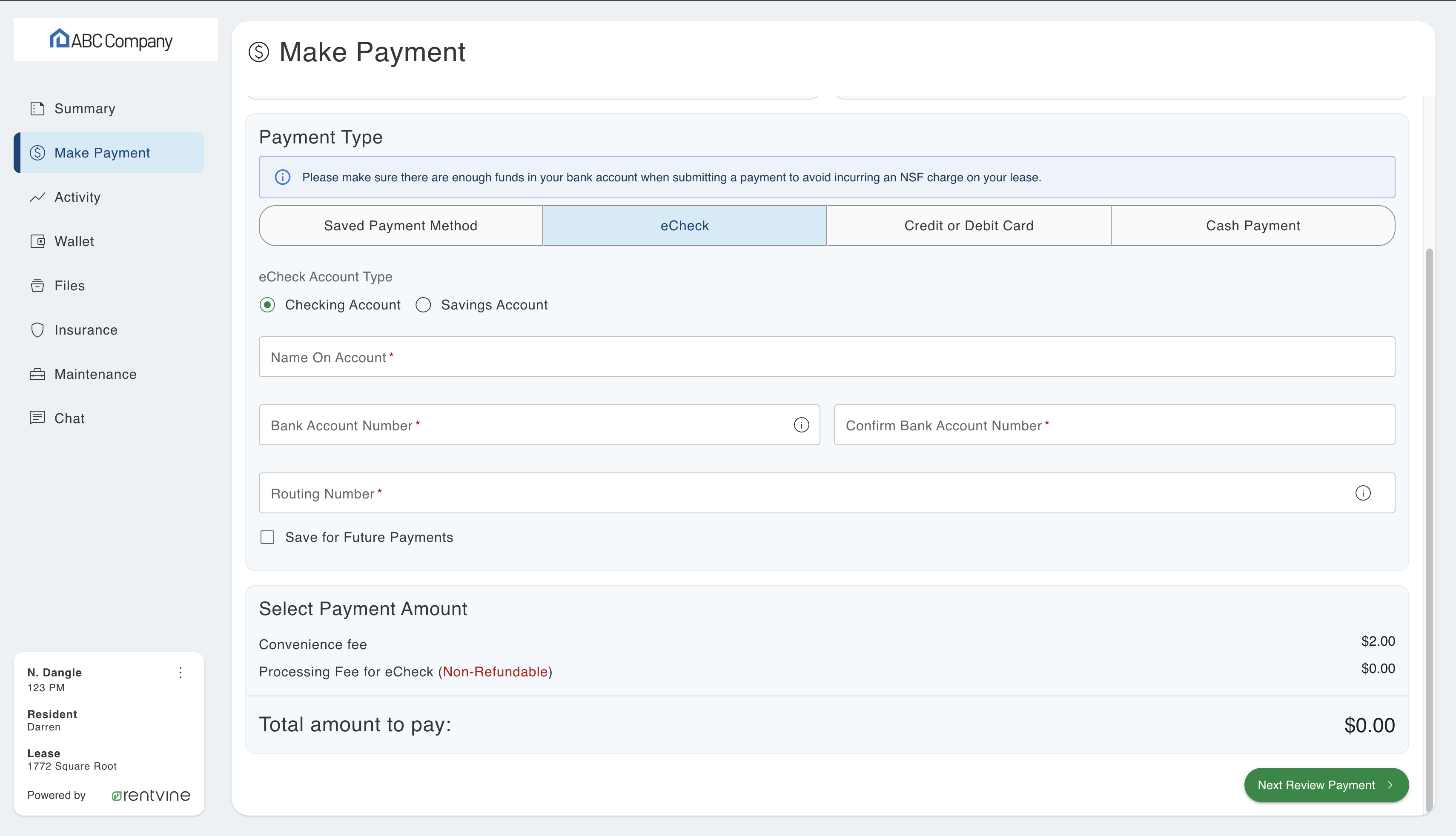
Note: After entering your bank information, you'll see options to select payment amount (Current, Current & Upcoming, or Other).
You have three options:
1. eCheck (FREE - Recommended)
- Pay directly from your bank account
- No processing fees
- Requires account and routing number
- You can save your bank info for faster future payments
2. Credit/Debit Card
- Pay with any major credit or debit card
- 4% processing fee per transaction
- You can save your card info for faster future payments
3. Cash Payment at Retail Stores
- Pay in cash at thousands of participating locations nationwide
- $4.99 fee per transaction
- $1,500 maximum per transaction
- Use "Find a Store" feature in the portal to locate nearby stores
Paper checks can still be dropped off at the office through May 5, 2026, but this is the final month we will accept them.
Starting in June, all payments must go through the portal. If you prefer not to pay online with a bank account, you can use a credit/debit card (4% fee) or CashPay to pay in cash at participating retail stores ($4.99 fee). If you need help setting this up, contact us at ddpm@doorvest.com or (541) 639-8304.
- Log into your Resident Portal
- Click "Make a Payment"
- Select "Credit/Debit Card" as your payment method
- Enter your card information:
- Card number
- Expiration date
- CVV/Security code
- Billing zip code
- Choose your payment amount:
- Current: Everything you owe up to today's date
- Current & Upcoming: Current balance plus charges posting within 18 days
- Other: Enter a custom amount
- Review the total (including 4% processing fee) and agree to Terms & Conditions
- Click "Make Payment"
You can save your card information for faster future payments by checking the save option.
- Log into your Resident Portal
- Click "Make a Payment"
- Select "Cash Payment"
- Click "Pay With Cash"
- Click "Find a Store" to locate participating stores near you
- Select your store and get a barcode sent to your phone
- Take the barcode to the store and make your payment
Fees: $4.99 per transaction, $1,500 maximum per transaction
Participating stores include major retailers nationwide. The payment typically posts to your account within 1-2 business days.
The Wallet tab is where you can save payment methods (bank accounts or credit/debit cards) for faster future payments. Once you save a payment method here, you can select it quickly when making payments instead of re-entering your information each time.
To save a payment method:
- Go to the Wallet tab
- Click "Add Payment Method"
- Enter your payment information
- Save
Important: If you save a credit/debit card, you'll still be charged the 4% processing fee each time you use it.
Autopay
- Log into your portal
- Go to your Summary page
- Find the "Autopay" section
- Click "Enroll Now"
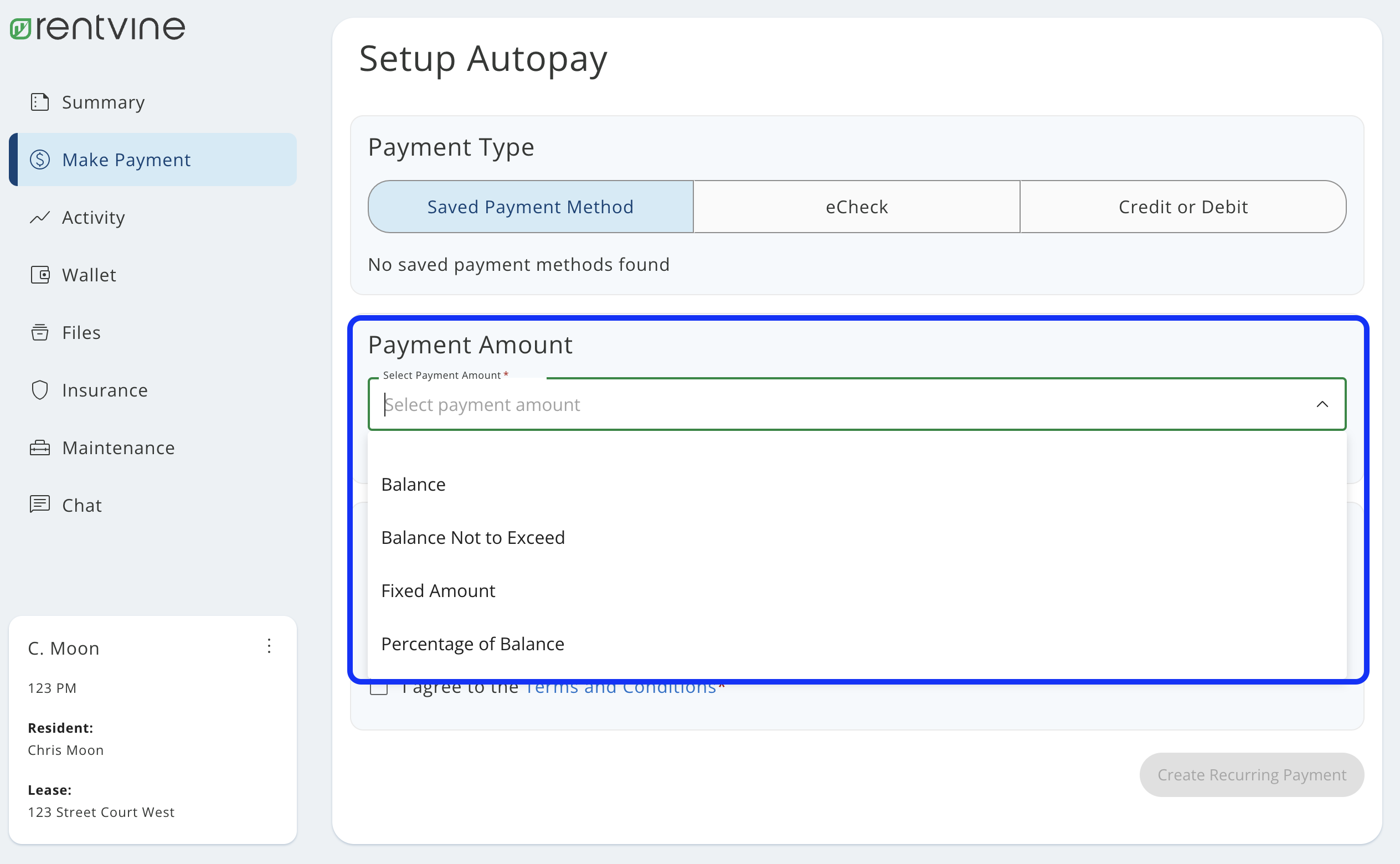
- Choose your payment method:
- Saved Payment Method: Select from a payment method you saved in your Wallet
- eCheck: Enter your bank account and routing number (FREE)
- Credit/Debit: Enter your card information (4% processing fee applies each time)
- Select payment amount (Current, Current & Upcoming, or Full Balance)
- Set start date (this determines when your monthly payment pulls)
- Optionally set an end date (leave blank for indefinite autopay)
- Agree to Terms & Conditions
- Click "Create Recurring Payment"
Important: If you select Credit/Debit as your autopay method, you'll be charged a 4% processing fee with each automatic payment. We recommend eCheck to avoid fees.
If you set up autopay through your bank's bill pay system (not through PayRent/Appfolio), you MUST cancel it immediately to avoid:
- Payments going to the wrong account
- Double payments
- Payments being rejected
Contact your bank to cancel any automatic payments set up for rent. Then set up autopay through the new Rentvine portal instead.
Need help? Contact us at ddpm@doorvest.com or (541) 639-8304.
Security Deposits
Your security deposit remains fully credited to your account. You'll see it displayed in the "Security Deposit" section of your Summary page. The transition to Rentvine does not change:
- The amount of your security deposit
- The terms under which it can be used or refunded
- Your rights to the deposit (still governed by your lease and applicable law)
If the amount shown doesn't match your records, contact us immediately at ddpm@doorvest.com or (541) 639-8304.
Maintenance Requests
- Log into your Resident Portal
- Click the "Maintenance" tab
- Click the green "Maintenance Request" button
- Fill out the request form with a detailed description
- Upload photos if possible (this helps us send the right vendor with the right tools)
- Click "Submit"
After submission:
- You'll see the request status on the left side
- There's a group chat for the request where you can communicate with us and the vendor
- You'll receive text/email notifications about updates
- You can add more photos or documents to the chat
For maintenance emergencies: Call (855) 800-9356 instead of submitting online.

Communication & Lease Information
Use the "Chat" tab in your portal. This is your main communication channel for:
- General questions
- Rent payment issues
- Lease renewal discussions
- Move-out notices
- Any non-maintenance topics
You can:
- Send messages
- Upload files
- Search previous conversations
- Receive email/text notifications when you get replies
Important: Use this Chat tab for general communication, and use the maintenance request chat only for specific work orders.
Lease Renewals
All lease renewal discussions and documentation will now happen in the Rentvine portal:
- Use the Chat tab to discuss renewal terms with your property manager
- Renewal offers will be presented in the portal (not via email)
- You'll digitally sign any renewal documents in the portal
- If you're mid-negotiation, we'll continue the conversation in the portal after you register
No. Renewal offers are handled entirely within the Resident Portal through the Chat feature. You'll receive a notification (via email or text) that you have a message in your portal, but the actual offer, negotiations, and documents are all in the portal itself.
When your renewal is ready, your property manager will send the renewal documents through the portal. You'll be able to review and sign them digitally - no need to print, sign, scan, or mail anything. Just click, review, and sign electronically.
Move-Out
- Log into your Resident Portal
- Go to your Summary page
- Find the "Lease Details" section
- Click on "Actions" or look for "Move Out Notice"
- Fill out the form with expected move-out date, reason for leaving, and forwarding address
- Submit
Your property manager will be notified immediately and will assist you through the move-out process.
Note: Some property managers may disable this feature and request move-out notices a different way. If you don't see the move-out option, use the Chat tab or contact us directly at ddpm@doorvest.com or (541) 639-8304.
Your property manager will:
- Acknowledge receipt of your notice
- Provide move-out instructions
- Schedule a move-out inspection
- Explain the security deposit return process
- Communicate with you via the Chat tab for any additional details
Special Situations
Your housing assistance will continue to pay their portion directly to us. Here's what you need to know:
In the portal:
- You may see the full rent amount in your balance
- You are only responsible for your tenant portion
- Your assistance program pays their portion separately (not through the portal)
What you should do:
- Pay only your tenant portion through the portal using eCheck, Credit/Debit Card, or CashPay
- If you're unsure what your tenant portion is, contact us at ddpm@doorvest.com or (541) 639-8304
- Your assistance program continues unchanged - only the payment method for your portion has changed
Each person listed on the lease receives their own portal invitation and login. However, you all share the same lease balance. This means:
- Any roommate can make a payment that credits the shared balance
- You can coordinate who pays what portion
- All roommates see the same balance and charges
- All roommates listed will appear in the "Lease Details" section
- Payments from any roommate will show in everyone's "Recent Activity"
Tip: Use the Chat tab to coordinate with your property manager about how you'll split payments.
If you already mailed or dropped off a paper check during this transition period, contact us if you are not sure whether it was received. Paper checks are only being accepted at the office through May 5, 2026. After that, all payments must go through the portal.
- eCheck (FREE) - Pay from your bank account online
- CashPay ($4.99) - Pay cash at retail stores
- Credit/Debit Card (4% fee)
Contact us at ddpm@doorvest.com or (541) 639-8304 if you have questions about a check you sent.
Your parents can pay through your portal in a few ways:
Option 1: You process the payment
- You log in and make the payment using their bank account info (eCheck) or their credit/debit card
- This is the simplest if you have their payment information
Option 2: They use CashPay
- You log in, generate the barcode, and send/show it to them
- They take the barcode to a participating store and pay in cash
Option 3: They use your login
- You can share your portal credentials with them if you're comfortable
- They can log in directly and make payments
The portal is tied to your name/lease, but anyone can make payments through it as long as they have access to log in.
You'll receive a new portal invitation for your new lease. When you accept it:
- Use your existing email/password (don't create a new account)
- After logging in, you'll see an option to switch between your old and new lease
- Click the menu icon (three lines) by your name in the bottom left → "Switch Lease"
- Select which lease you want to view
Note: Your property manager may disable access to your old lease portal after move-out is complete.
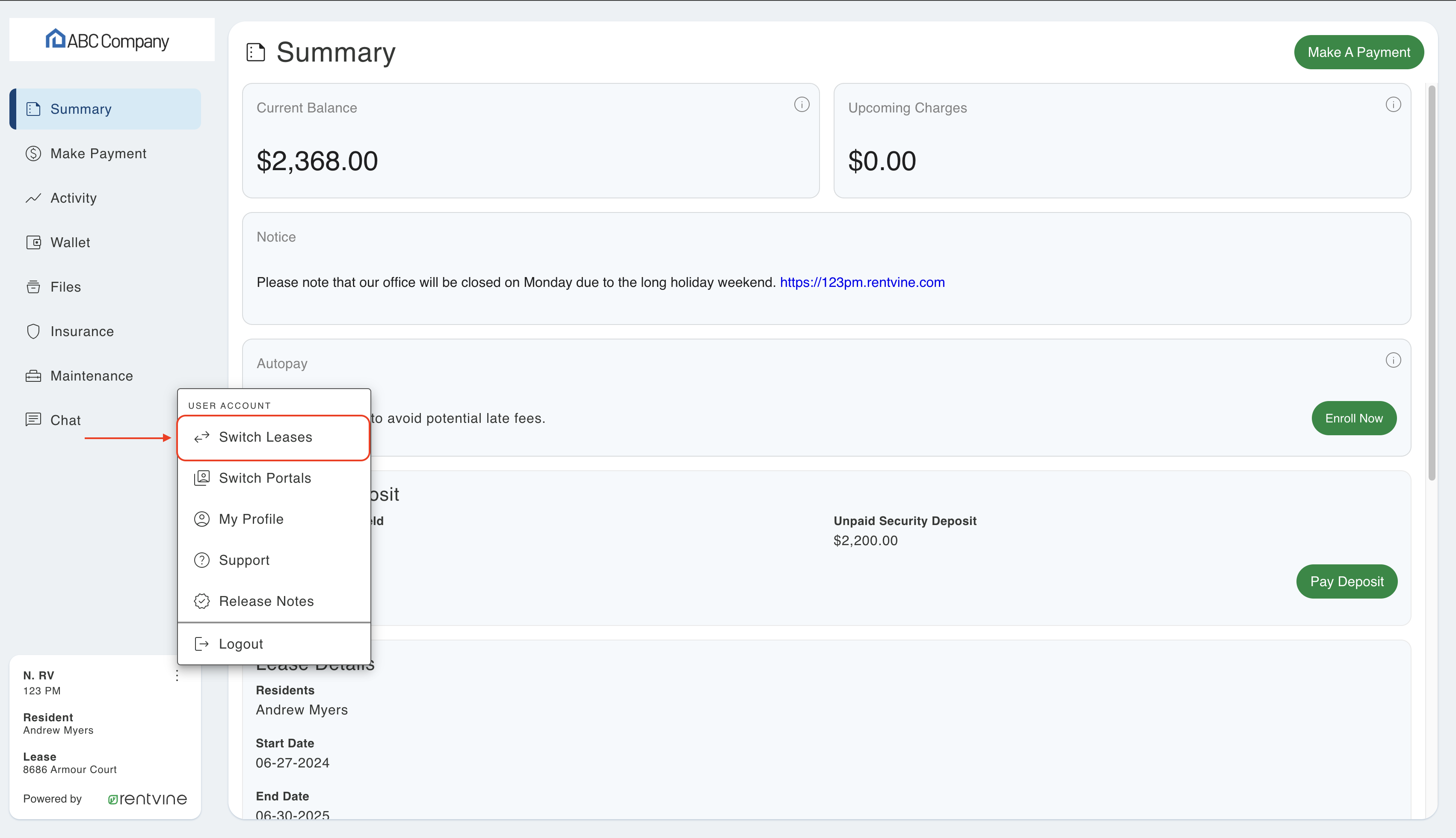
Yes! If you rent multiple properties managed by us (or any Rentvine property manager), they'll all be accessible from one login. Use the "Switch Lease" feature to toggle between them. You don't need separate email addresses or accounts for each property.
Use CashPay to pay in cash at retail stores:
- Call us at (541) 639-8304 - we'll help you get set up
- We can generate a payment barcode for you over the phone
- Take the barcode to participating stores (Walmart, CVS, 7-Eleven, Family Dollar, etc.)
- Pay in cash ($4.99 fee per payment)
You can also visit a library or use a friend's computer to access the portal and generate the barcode yourself.
We're here to help! Call us anytime at (541) 639-8304.
Each person listed on the lease receives their own separate portal invitation to their own email address. You cannot share a single portal login. If you share an email address with a roommate, one of you should update your contact information with us so each person can receive their own invitation. Contact us at ddpm@doorvest.com or (541) 639-8304 to update your email address.
Technical Issues
The Rentvine portal is fully responsive and works on any device. If you're having issues:
On mobile:
- Look for the menu icon (three horizontal lines) to access the left navigation
- Make sure you're using an updated browser
- Try clearing your browser cache
General troubleshooting:
- Clear your browser cache and cookies
- Try a different browser (Chrome, Safari, Firefox, Edge)
- Make sure your browser is updated to the latest version
- Try on a different device
- Make sure JavaScript is enabled in your browser
If problems persist, contact us at ddpm@doorvest.com or (541) 639-8304 or Rentvine support at support@rentvine.com.
Use the "Forgot Password?" link on the login page to reset your password. If that doesn't work or you're having other access issues, contact us at ddpm@doorvest.com or (541) 639-8304 and we'll help you regain access immediately.
- First: Contact us at ddpm@doorvest.com or (541) 639-8304 - we can help with most issues including login problems, payment issues, or questions about your account
- For Rentvine technical support: If we confirm it's a Rentvine system issue (like the portal being down or a software bug), we'll help you submit a ticket or you can contact support@rentvine.com directly
Yes! You can log into your portal from any device - your phone, tablet, laptop, or desktop computer. Your session will work across all devices, and you can be logged in on multiple devices at the same time.
Additional Resources
- All Resident Help Articles: https://help.rentvine.com/residents
- Complete Portal Guide: https://help.rentvine.com/resident-portal-introduction
- Contact DV Communities: ddpm@doorvest.com or (541) 639-8304
Still Have Questions?
Our team is here to help you with the transition.
Last Updated: April 2026